Before you share it
Blur a screenshot
on a Mac.
Markup, the editor that opens from a Mac screenshot’s thumbnail, has shapes and text but no blur tool. The built-in way to hide something is to cover it with a filled shape. SnapApp is a free native Mac app that blurs or pixelates any area, or only the words you pick, the moment you snip.
macOS 14 Sonoma or later · Apple silicon & Intel · Free to download · Blur with Pro · No account
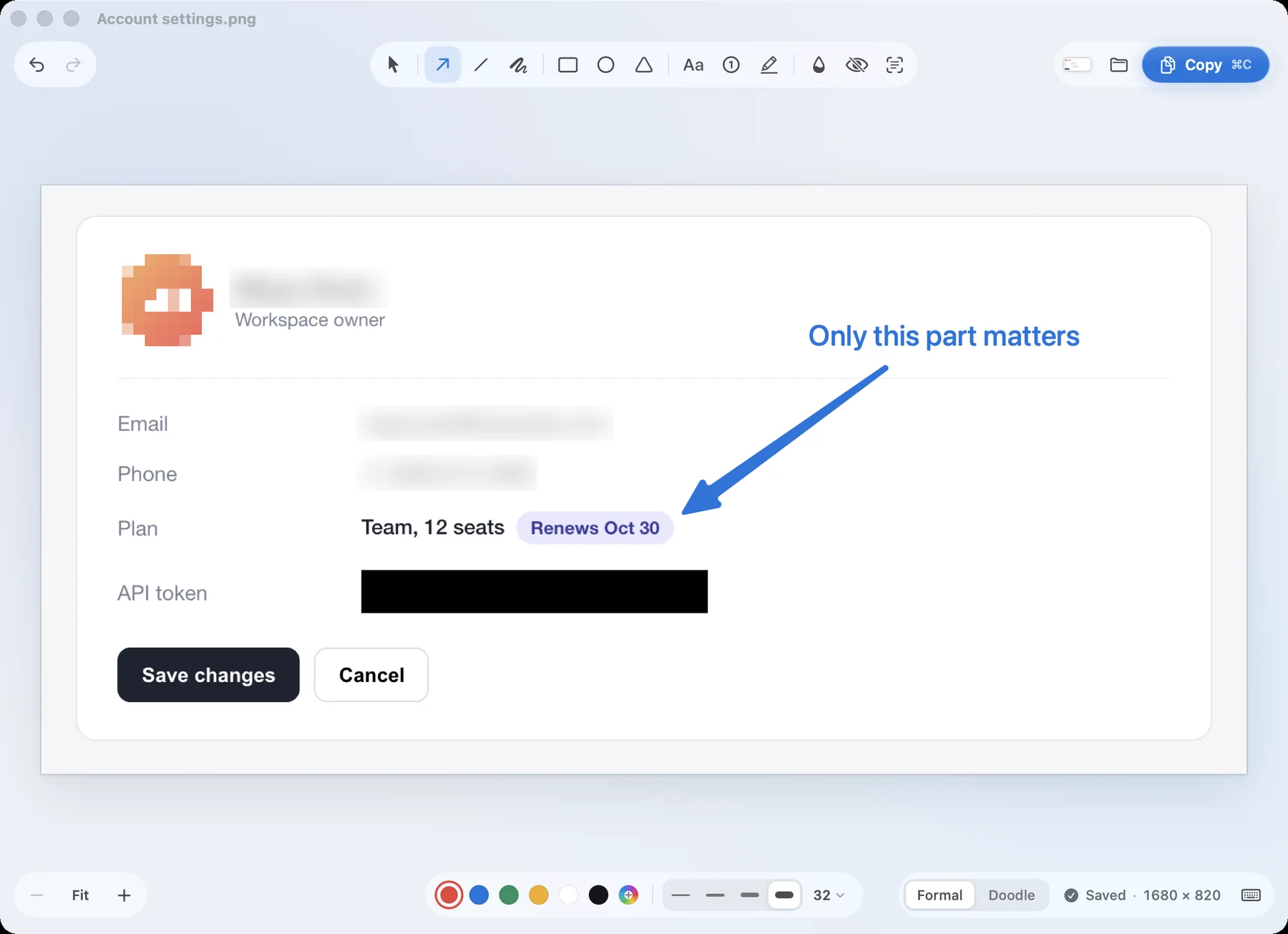
Three ways to hide details in a Mac screenshot.
Blur, pixelate or redact with SnapApp
- 1then drag across the area.
- 2Press for Blur, or for Redact. Drag over a face, a name or a number, or choose Smart text and click the words.
- 3Switch between Blur and Pixelate, from Light to Max. The lock button turns Blur into a solid Redact.
- 4Press Command + C to copy it. The PNG is also saved in Pictures.

Cover it with Markup
- 1then drag, and click the floating thumbnail.
- 2In Markup, click Shapes and choose a rectangle.
- 3Set its Fill Color to black and drag it over the detail.
- 4Click Done. The detail is covered, not blurred: Markup has no blur tool.
Faces only: Clean Up in Photos
- 1On a Mac with Apple Intelligence, add the screenshot to Photos and open it.
- 2Click Edit, then Tools, then Clean Up.
- 3Brush over a face. Apple says the face may become blurred with a pixelated effect.
- 4For names, numbers and other text, use a solid cover instead.
Blur is not redaction
Blur what’s personal. Cover what’s secret.
Blur and pixelation stop a casual glance, but blurred or pixelated text can sometimes be read back. Security researchers at Bishop Fox published Unredacter, a tool that reconstructs pixelated text, under the line “Never ever ever use pixelation as a redaction technique.” Security engineers and penetration testers who do this kind of work are also paid by AI labs to attack and audit AI systems, and the cybersecurity roles on AITraining.jobs, a sister project of this app, list them with typical pay.
Blur or pixelate
- Faces and profile pictures
- Names in a chat or a team list
- Notifications and background windows
Cover with a solid box
- Passwords, API keys and tokens
- Card, bank and account numbers
- Home addresses and phone numbers
SnapApp saves and copies a plain PNG: the blur or cover is part of the pixels, with no hidden layer or original image inside the file. Smart text recognizes words on your Mac, and nothing is uploaded.
Blur options on a Mac, side by side.
Blur an area
- Markup
- No blur tool
- Photos Clean Up
- Faces only: Clean Up may pixelate a face you brush over
- SnapApp
- Blur or pixelate any area, from Light to Max
Hide only some words
- Markup
- No
- Photos Clean Up
- No
- SnapApp
- Smart text: click a word or drag across lines
Cover it completely
- Markup
- A shape with a black fill
- Photos Clean Up
- No
- SnapApp
- Redact: a solid cover over an area or recognized words
Right after the screenshot
- Markup
- Yes, from the floating thumbnail
- Photos Clean Up
- Add the screenshot to Photos first
- SnapApp
- Yes, every snip opens in the editor
What it needs
- Markup
- Built into macOS
- Photos Clean Up
- A Mac with Apple Intelligence
- SnapApp
- macOS 14 Sonoma or later. Blur is part of Pro, with a 14-day free trial.
Blurring screenshots on a Mac, answered.
Can you blur a screenshot on a Mac without an app?
Not with a true blur. Markup, the built-in editor, has no blur or pixelate tool, so the built-in way is to cover the detail with a filled shape. On Macs with Apple Intelligence, Clean Up in Photos may pixelate a face you brush over.
How do I blur part of a screenshot on a Mac?
With SnapApp: press Command + Shift + 2 and drag across the area, press U for Blur, then drag over what you want to hide. Switch to Pixelate or a stronger setting if you like, then press Command + C to copy it.
How do I pixelate a screenshot on a Mac?
SnapApp's Blur tool switches between Blur and Pixelate, from Light to Max. On Macs with Apple Intelligence, Clean Up in Photos may pixelate faces.
Is blurring safe for passwords or account numbers?
No. Blurred or pixelated text can sometimes be reconstructed. Cover sensitive text with a solid box instead: a black-filled shape in Markup, or Redact in SnapApp.
Can I blur just the text in a screenshot?
Yes, in SnapApp: choose Smart text in the Blur or Redact tool, then click a word or drag across lines. Text recognition runs on your Mac.
Does the original stay in the saved file?
Not with SnapApp. It saves and copies a plain PNG with the blur or cover in the pixels, and no hidden layer or original image inside.
Where do blurred snips go?
Every snip saves as a PNG in Pictures, in a SnapApp folder, named after the app and window you captured. Press Command + C in the editor to copy it instead.
Is SnapApp free?
SnapApp is free to download and free for capturing and marking up with arrows, shapes, a pen, text and highlights, with no account. Blur, redaction, numbered steps and text recognition are part of SnapApp Pro: $2.90 a month or $29 a year with a 14-day free trial, or $89 once. It runs on macOS 14 Sonoma or later, on Apple silicon and Intel Macs.
Markup and Photos details checked on September 30, 2026 against Apple’s guides. Unredacter is published by Bishop Fox on GitHub.